Somebody asks you to document what a page looks like. You take a screenshot, paste it into a Google Doc, add the URL and the date by hand, maybe resize the image so it doesn't blow past the margins. Fifteen minutes later you have something that looks like it was made in a hurry, because it was.
We've done this too many times. Screenshots are easy to take but annoying to package up into something you can hand off. So we built a PDF export into VZLyze that does the packaging for you.
The usual workarounds (and why they're annoying)
Before getting into the how-to, here's what most people do when they need a screenshot in PDF form. All of these work, none of them are fun.
Print to PDF. You hit Ctrl+P, pick "Save as PDF," and get a document. The problem is it's not a screenshot. It's the browser's print layout, which drops background colors, breaks multi-column layouts, and reformats everything. If your goal was to show what the page looks like, this doesn't do that.
Screenshot, then paste into Docs or Word. This works but it's slow. You take the screenshot, open a document, insert the image, add context manually. If you're doing this once a month, fine. If you're doing it twice a day for QA or client reporting, it gets old fast.
Dedicated PDF tools. Some people open the screenshot in a tool like Adobe Acrobat or an online converter. That's one more app to open, one more upload, one more download. The output is a PDF that contains an image and nothing else, so you still have no metadata.
How to do it with VZLyze
This takes about 10 seconds. The PDF comes out with the screenshot, the page URL, and the capture date already included.
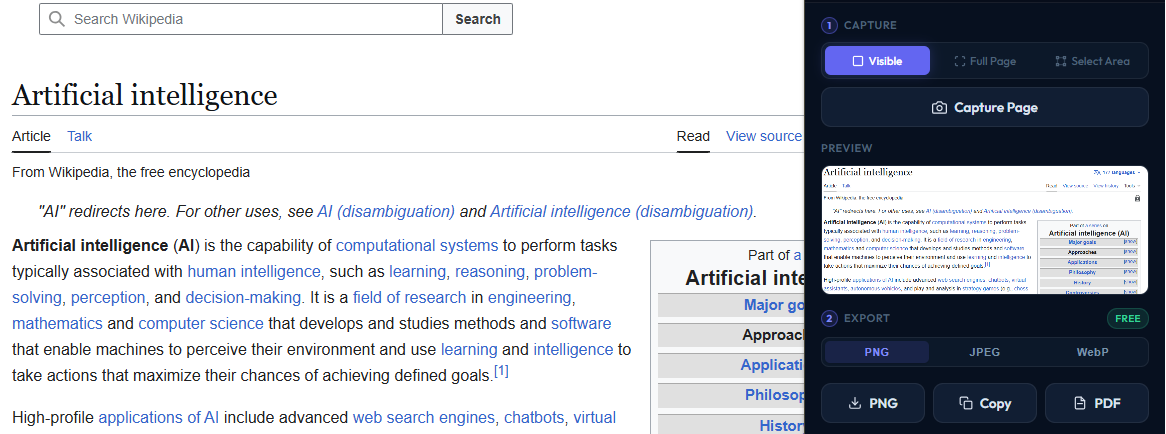
Click the VZLyze icon in your toolbar. Pick Visible (what's on screen), Full Page (the entire scrolling page), or drag to select a specific area.
Below your capture, hit the PDF button. The report generates right there in the browser. No uploads, no external services.
The PDF saves to your downloads folder. It includes the screenshot image, the source URL, and a timestamp. That's it.
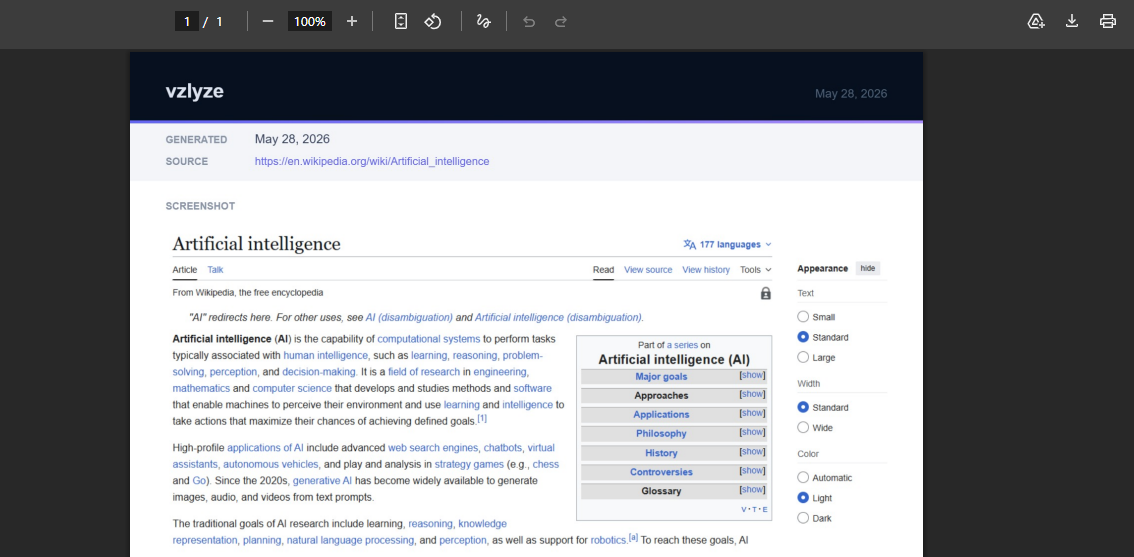
No account needed for this. The capture and PDF export are free.
Adding AI analysis to the report
This part is optional and uses credits, but it's worth mentioning because the PDF gets a lot more useful with it.
After you capture a screenshot, you can click Analyze before exporting. The AI reads the page content and pulls out the important parts: numbers, key details, things that might need attention. When you export to PDF after that, the analysis gets included in the report underneath the screenshot.
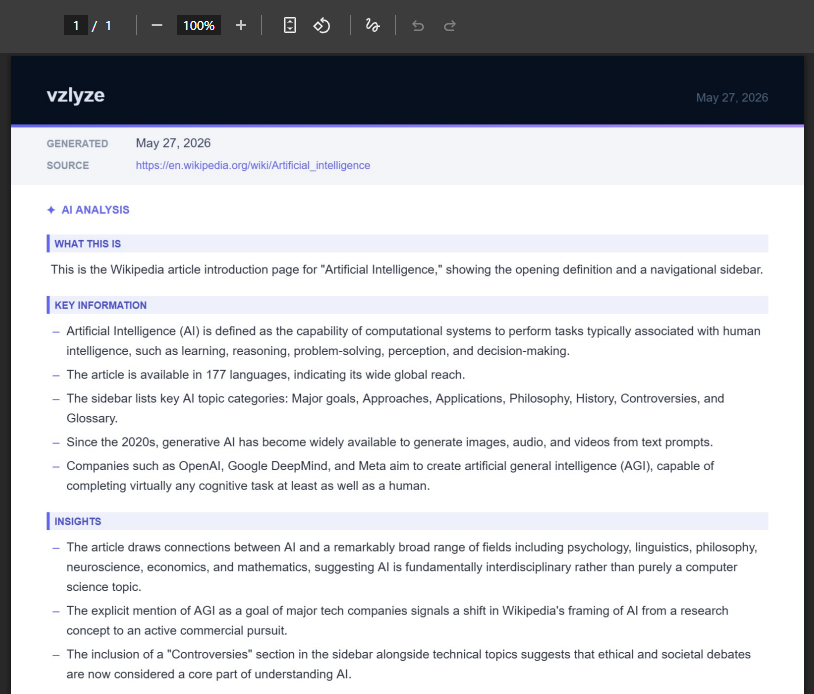
We find this useful for two situations. First, when sending a screenshot to someone who doesn't have time to read the whole page. The analysis gives them the summary right there. Second, when documenting something and knowing we won't remember the context in a week.
If you run a Quick Analysis or a Research Mission, the output gets baked into the PDF automatically.
When this is useful
We didn't expect the PDF export to be the feature people used the most. But it comes up in a few specific situations.
QA and bug reports. You capture the broken page, the report includes the URL and timestamp, so the developer knows exactly where and when. No back-and-forth asking "which page was this?" If you ran an analysis, the AI might catch things like missing elements or layout issues that are easy to miss in a plain screenshot.
Client reporting. If you're sending website screenshots to a client, a branded PDF looks better than a loose PNG in a Slack message. It takes the same amount of effort but comes across as more put-together.
Research and archiving. Web pages change and disappear. A PDF with the full-page screenshot, URL, and date is a snapshot you can file away. We've gone back to these months later when a page got updated or taken down.
A few things to know
The PDF generates entirely in your browser. Your screenshot never gets uploaded anywhere for the export. The only time data leaves your machine is if you run AI analysis, which sends the image to the API for processing.
Wide screenshots (like spreadsheets or dashboards) automatically get a landscape PDF. You don't have to set that manually.
Full-page captures of long pages produce large images. The PDF handles this fine, but the file size can get big if the page is especially long. For most pages it's under a few MB.