We can't count how many times we've needed a screenshot of an entire webpage, not just the part visible on screen. The page scrolls, the content keeps going, but Chrome only screenshots what you can see. Annoying.
There are a few ways to get around this. We've tried all of them. Here are three methods, starting with what Chrome gives you out of the box.
Method 1: the DevTools trick (built-in but buried)
Most people don't know this exists. Chrome has a full page screenshot command hiding inside DevTools. It works, but you'd never find it unless someone told you.
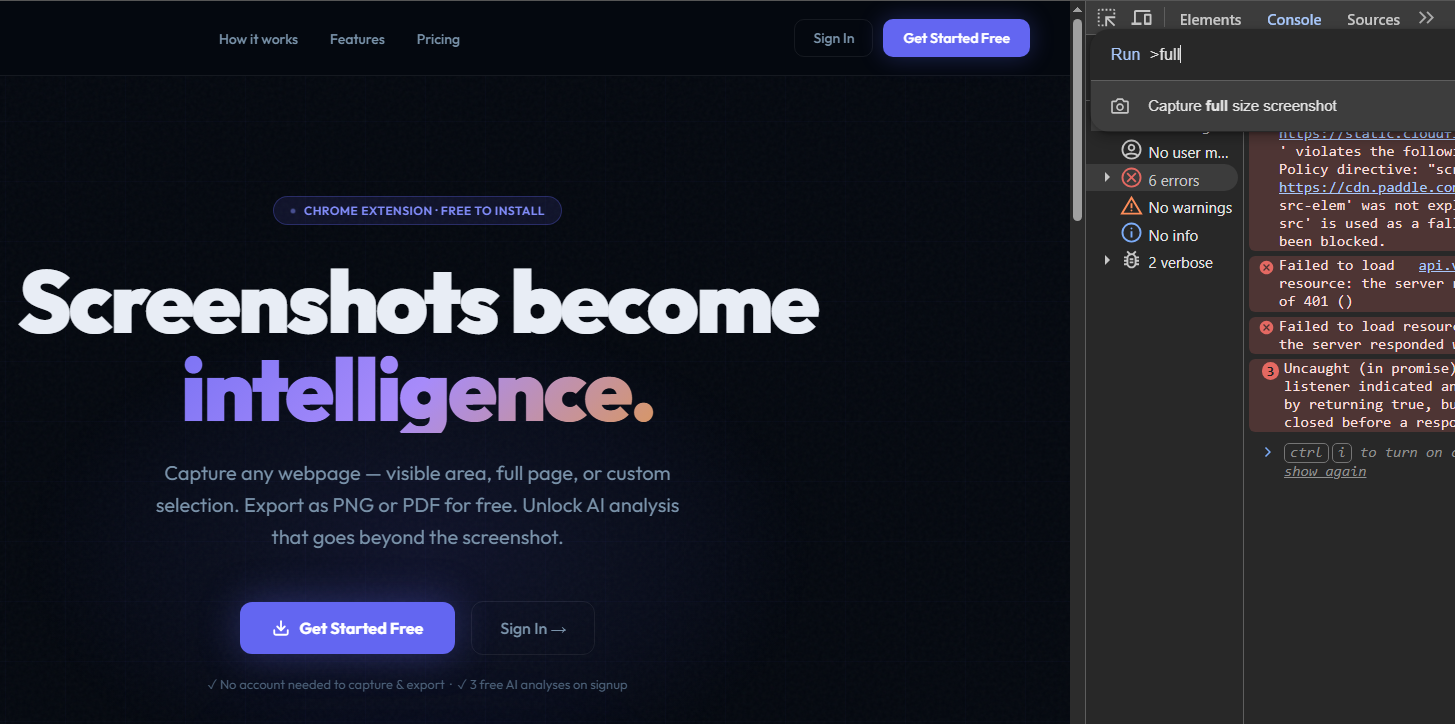
Press F12 or Ctrl+Shift+I (Cmd+Option+I on Mac).
Press Ctrl+Shift+P (Cmd+Shift+P on Mac). A search bar pops up at the top.
Hit Enter. Chrome scrolls through the page internally and saves a PNG to your downloads.
It works. But we have a few gripes with it.
First, sticky headers and fixed navbars get repeated throughout the image. If the page has a sticky menu, you'll see it pasted at the top of every "scroll chunk." It looks broken. Second, the capture uses the DevTools viewport width, not your actual browser width, so the layout can look slightly different from what you were looking at. And there's no PDF option, no annotation, no analysis. It's a raw PNG dump.
For a quick one-off capture where you don't care about polish, it does the job. For anything you're sharing with someone else, keep reading.
Method 2: VZLyze (what we use)
This is the method we'd recommend. We built VZLyze specifically because the DevTools approach kept frustrating us, especially the sticky header issue and the lack of PDF export.
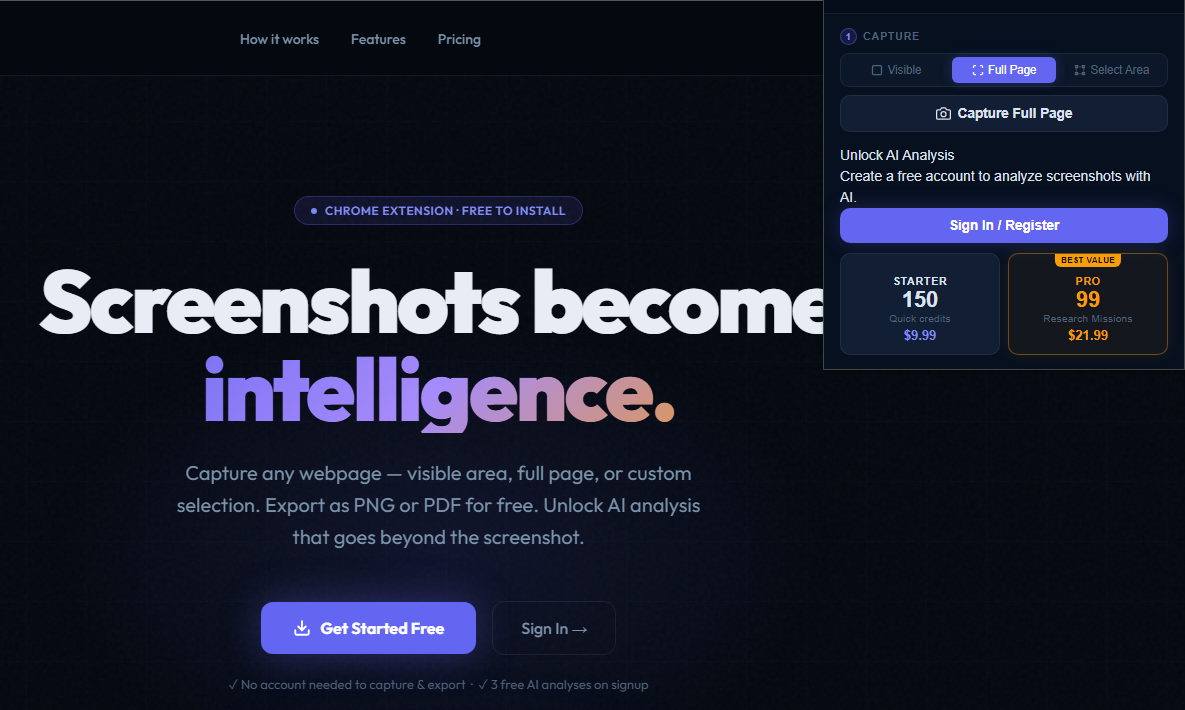
Add VZLyze to Chrome from the Chrome Web Store. It's free.
Click the VZLyze icon in your toolbar, then hit Full Page. The extension scrolls the page and stitches the pieces together.
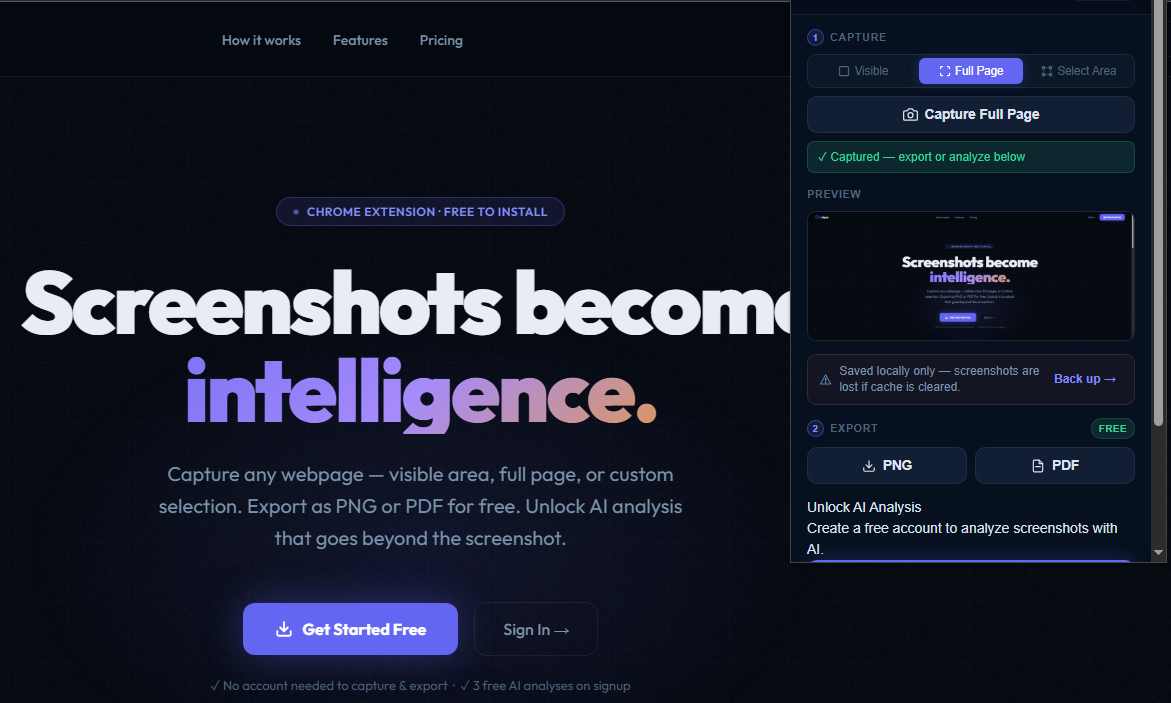
Download as PNG, export as a PDF report (with date and source URL included), or click Analyze to have AI read the page content and pull out the important parts.
The AI analysis part is optional and uses credits, but the capture and export are free. No account needed for those.
Method 3: Print to PDF (the workaround people settle for)
Press Ctrl+P, change the destination to "Save as PDF," and hit Save. You'll get a PDF of the page content.
We don't love this method. The output is a print-formatted document, not a screenshot. Layouts break, columns collapse, background colors disappear, and interactive elements like dropdowns or carousels just look wrong. If someone asked you to "screenshot this page" and you sent them a Print-to-PDF, they'd probably ask you to try again.
It's fine for saving article text, but not for capturing what a page looks like.
So which one should you use?
It depends on what you need.
If you just need a quick PNG and don't care about sticky header glitches, DevTools works. If you're capturing pages regularly, or you need to share them as PDFs, or you want AI to summarize what's on the page, VZLyze saves a lot of time. Print to PDF is a last resort for saving text content when nothing else is available.
We use VZLyze because we built it to solve exactly this problem, so we're biased. But the free capture and PDF export alone would have saved us a lot of workarounds back when we were relying on DevTools.