You take a screenshot. Then you stare at it. If it's a dashboard, you're scanning for the numbers that matter. If it's an article, you're trying to find the one paragraph that answers your question. If it's a spreadsheet, good luck.
That's the gap AI screenshot analysis fills. Instead of you reading the image, the AI reads it and tells you what's there. Numbers, patterns, key details, things that look off. It's not magic, it's pattern recognition applied to an image of your screen.
How it works
When you click Analyze in VZLyze, the extension sends your screenshot to an AI model that can read images. The model looks at the text, layout, numbers, charts, and whatever else is visible, then returns a structured breakdown.
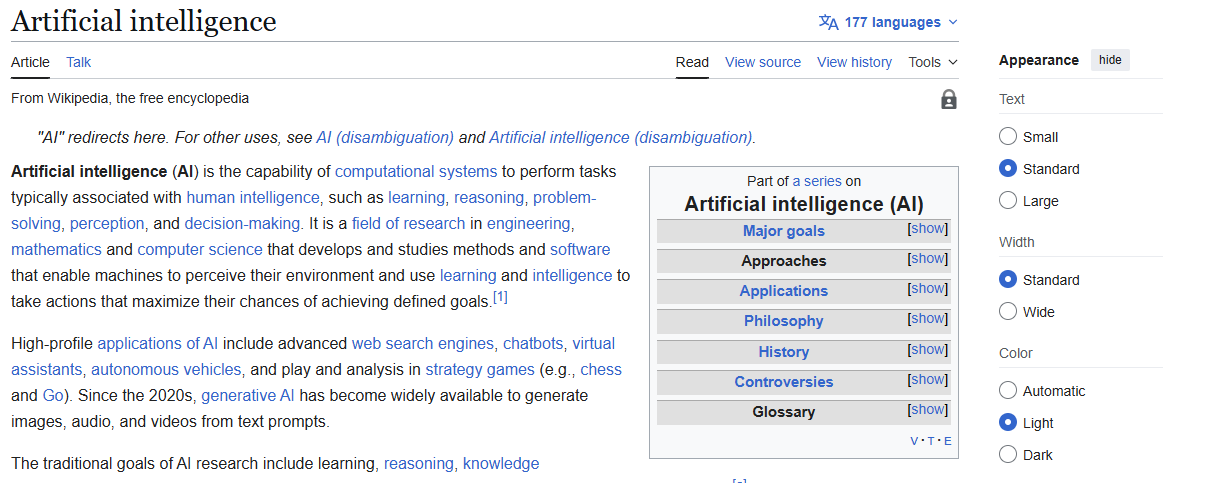
The output is organized into sections. Typically you get a summary of what the page is, the key data points or facts, observations the AI noticed, and sometimes suggested next steps. The format adjusts depending on what's in the screenshot. A dashboard gets a numbers-focused analysis. An article gets a content summary. A product page gets pricing and feature details.
There are two modes:
Quick Analysis reads the screenshot and responds in a few seconds. It pulls out the main points and gives you a structured summary. Good for when you need the gist of something without reading the whole page.
Research Mission goes further. The AI reads your screenshot, then searches the web for related context, background, comparisons, and recent news. It comes back with a longer report that includes information from outside the screenshot. We wrote a separate article about this one because it works differently enough to warrant its own explanation.

What kinds of screenshots work well
Not every screenshot benefits from AI analysis. Here's where we've found it saves time.
Dashboards and analytics. The AI picks out the metrics, tells you what's up, what's down, and flags things that look unusual. If you screenshot your analytics dashboard every Monday, the analysis gives you the summary you'd normally write yourself.
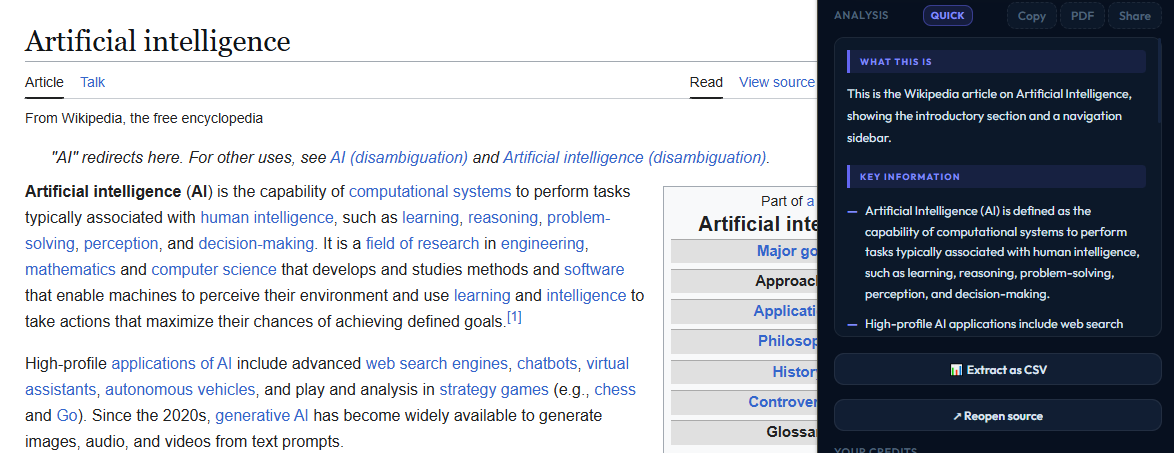
Articles and documentation. Long pages where you just need the key takeaways. The analysis pulls out the main points so you don't have to read the whole thing. We use this a lot with technical documentation where we're looking for a specific detail buried in a wall of text.
Product and pricing pages. When you're comparing options, the analysis extracts prices, features, and limitations into a readable summary. Faster than making your own comparison spreadsheet.
Error messages and logs. Screenshot the error, hit Analyze, and the AI explains what the error means and often suggests what to do about it. This is particularly useful if you're not a developer and you're trying to document a bug for someone who is.
Social media and news. If you screenshot a thread or news article, the analysis gives you the facts without the noise. Useful when you're researching something and need to quickly extract information from multiple sources.
Where it falls short
We want to be honest about the limitations because they matter.
It can't read very small text well. If your screenshot has tiny fine print, the AI might miss it or misread some characters. Zooming in before capturing helps.
It sometimes gets numbers wrong, especially in dense tables. If you're relying on the analysis for financial data or anything where precision matters, double-check the numbers against the original. The analysis is a starting point, not a certified audit.
It can only see what's in the image. If the answer to your question is below the fold or behind a tab, the AI can't get to it. Use Full Page capture if you want the entire page analyzed, or take multiple screenshots.
And it's a general-purpose model, not a domain expert. It'll do a good job summarizing a medical article, but we wouldn't use it for a diagnosis. Same for legal documents, financial advice, or anything where being wrong has real consequences.
Quick analysis vs. reading it yourself
If you have time and the page is short, just read it. AI analysis isn't always faster for a simple page with two paragraphs of text.
Where it pays off is volume and complexity. When you're looking at your fifth dashboard of the morning and you just need to know if anything changed. When someone sends you a screenshot of a spreadsheet and you need to respond in two minutes. When you're researching a topic and you've got twenty tabs open and you need the key facts from each one.
The analysis also has a side benefit we didn't expect: it forces structure. Even when you already know what's on the page, seeing it broken down into organized sections sometimes helps you notice things you skimmed past.
How credits work
Quick Analysis and Research Missions use credits. You get a few free ones when you sign up. After that, you can buy more through one of the credit packs. The capture and PDF export are always free.
Quick Analysis uses one Quick Credit per analysis. Research Missions use one Deep credit, which is separate because it costs more to run (the AI does web searches on top of reading the image).
Try it out
You get free analysis credits when you sign up. See what the AI pulls from your screenshots.
Get VZLyze for Chrome