You're reading something online and you think: I want to know more about this. Maybe it's a product you've never heard of, a claim in an article, a competitor's pricing page, or a chart with numbers you can't make sense of without context.
The normal workflow is: copy the relevant text, open a new tab, paste it into a search engine, read through a few results, try to piece together the picture. That takes five to ten minutes if the topic is simple. Longer if it's not.
Research Mission does this differently. You screenshot whatever you're looking at, click a button, and the AI reads the image, searches the web, and comes back with a report. The whole thing takes maybe thirty seconds.
How it works, step by step
Click the VZLyze icon and capture the page. Visible area, full page, or a selection of the specific part you're interested in.
Below your capture, you'll see the Research Mission button. Click it. The AI starts by reading your screenshot to understand what the topic is.
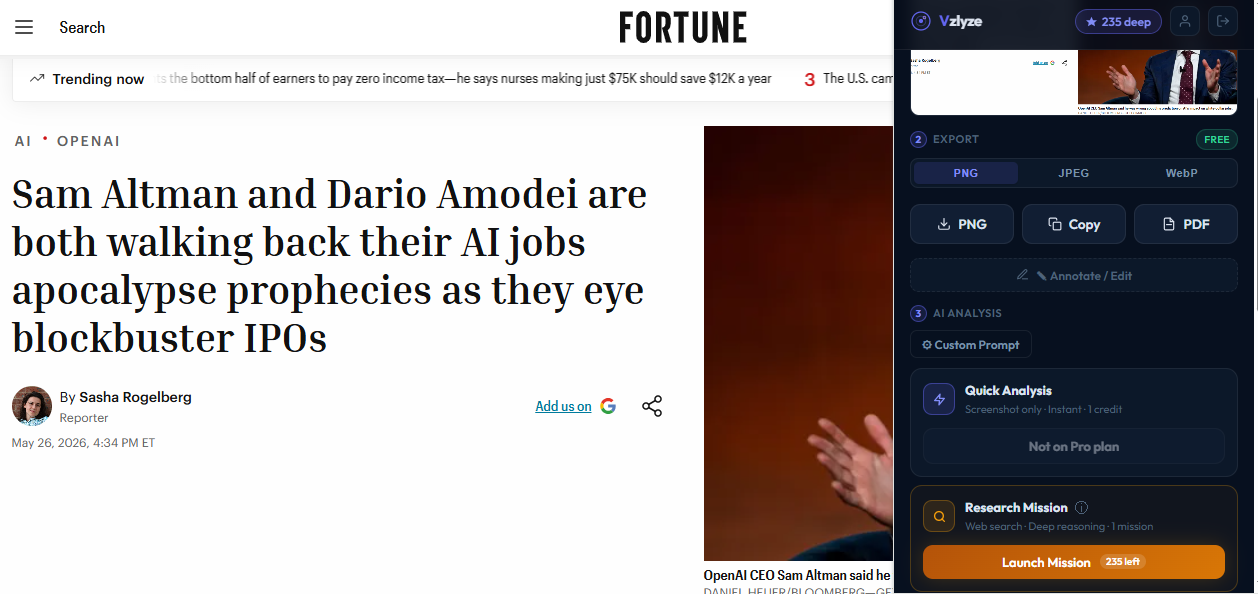
The AI searches the web for related information: recent news, background context, comparisons, reviews, whatever is relevant to what's in your screenshot. This takes a bit longer than a Quick Analysis because it's doing real web searches. Usually about 20 to 30 seconds.
You get a structured report right inside the extension. It typically includes a summary of what's in the screenshot, background context from the web, relevant comparisons or alternatives, recent news or updates, and source links you can click to verify anything.
How this differs from Quick Analysis
Quick Analysis reads the screenshot and tells you what's there. It works with just the image, nothing else. It's fast and it's good for getting a summary of what you're looking at.
Research Mission goes beyond the image. It uses the screenshot as a starting point, then pulls in information from the web. So instead of just summarizing a product page, it finds reviews, pricing comparisons, and recent news about the product. Instead of just reading a chart, it finds context that explains why the numbers might look the way they do.
Quick Analysis answers "what's in this screenshot?" Research Mission answers "what should I know about this?"
When we use this
We built this feature because we kept running into situations where a screenshot raised more questions than it answered. Here are the ones that come up most.
Competitor research. Screenshot a competitor's landing page or pricing table. The report comes back with how their pricing compares to similar products, what users are saying in reviews, and any recent changes they've made. This used to take me 20 minutes of Googling. Now it takes less than a minute.
Unfamiliar topics. Someone sends you an article about a subject you don't know well. Instead of reading the whole thing and then Googling the parts you don't understand, screenshot it and run a Research Mission. The report fills in the gaps.
News and claims. You see a tweet or headline with a bold claim. Screenshot it, run a Research Mission, and get the background. The report often includes other sources covering the same story, which helps you figure out what's going on.
Product evaluation. You're looking at a tool or service and you want the full picture before signing up. The Research Mission pulls in reviews, alternatives, pricing history, and any red flags from around the web. Saves the "let me Google this for 15 minutes" step.
Technical topics. Screenshot an error, a piece of documentation, or a configuration screen. The AI reads it and searches for related solutions, known issues, and explanations from forums and documentation sites.
What the report looks like
The report is structured, not a wall of text. It usually includes these sections, though the exact format adjusts based on what's in the screenshot:
- A summary of what the screenshot contains
- Background context from web sources
- Comparisons or alternatives, if relevant
- Recent news or developments
- Links to sources so you can dig deeper
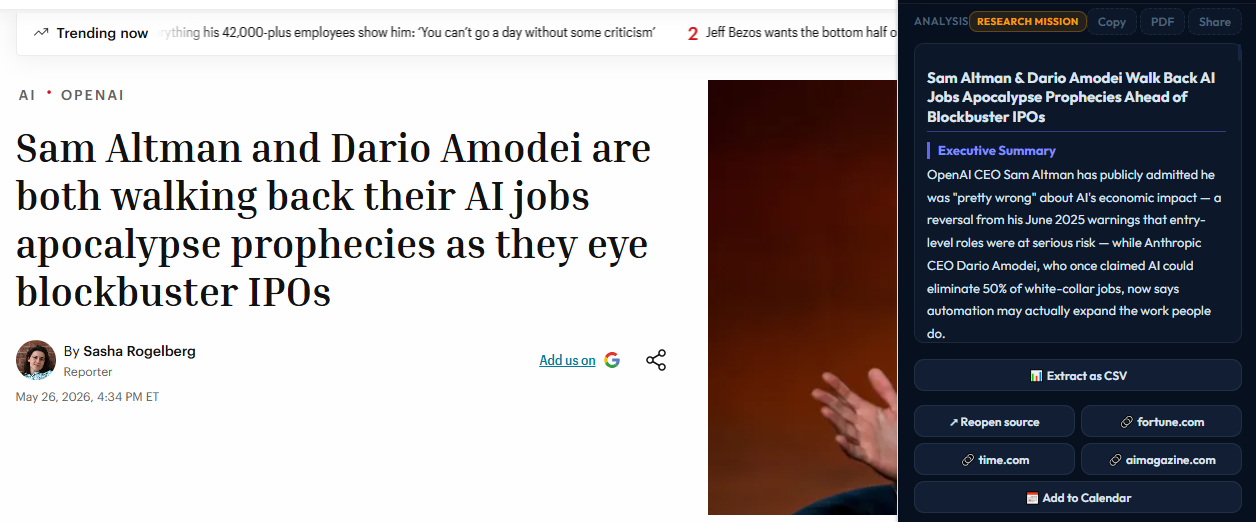
The links are clickable right inside the extension. If you want to verify something or read the full source, you can open it in a new tab. And if you export to PDF, the entire report gets included in the document.
Limitations worth knowing about
Research Missions depend on what's available on the web. If your topic is very niche or very new, the AI might not find much beyond what's already in your screenshot. It'll tell you when information is limited rather than making things up, but the report will be shorter.
The web search results are only as good as what's been published. For fast-moving topics, there might be a lag between when something happens and when articles about it show up in search results.
And like any AI output, treat the report as a starting point for your own thinking, not a final answer. The source links are there for a reason. If a specific fact matters to you, click through and confirm it.
Credits
Research Missions use one Deep credit each. These are separate from Quick Analysis credits because running web searches costs more to process. You get one Deep credit when you create an account. After that, you can buy more through the pricing page.
Try a Research Mission
You get free credits when you sign up. Screenshot something and see what the AI finds.
Get VZLyze for Chrome