You've been capturing things all morning. Pricing pages, error messages, design references, half a dozen browser tabs you wanted to come back to. Every screenshot is the same three or four clicks: open the toolbar icon, wait for the popup, pick a capture mode, click. By lunch your hand keeps wandering to the trackpad on its own.
That's the workflow keyboard shortcuts exist for. Vzlyze ships with four shortcuts wired up by default and a fifth one ready to bind. Once they're in your muscle memory, capturing becomes a single key press.
The shortcuts
| Action | Default keys | What happens |
|---|---|---|
| Open Vzlyze | Alt + Shift + V | Opens the popup so you can pick any capture mode. |
| Capture visible area | Alt + Shift + S | Grabs what's on screen right now and opens the popup with the capture ready. |
| Capture full page | Alt + Shift + F | Scrolls and stitches the whole page into one tall image. |
| Copy last screenshot | Alt + Shift + C | Puts the most recent capture on your clipboard without opening the popup. |
| Capture selected area | set your own | Draws a selection box for a region capture. |
On Mac, the Alt key is Option. Chrome translates the binding automatically, so Alt+Shift+S becomes Option+Shift+S without any changes from you.
What each one is for
Open Vzlyze. The catch-all. If you're not sure which capture mode you want yet, hit this one. The popup opens with every capture option, your most recent screenshot, your credit balance, and the AI analysis buttons.
Capture visible area. The workhorse. It grabs exactly what fits on screen and drops it into the popup ready to analyze. This is the one you'll reach for most often, and the one worth committing to muscle memory first.
Capture full page. Use this when the thing you want is longer than your viewport. Long blog posts, full pricing tables, multi-section dashboards. Vzlyze scrolls the page in segments, captures each chunk, and stitches them into one tall image. There's a longer write-up on full page capture in Chrome if you want the deep dive.
Copy last screenshot. The least obvious one, but useful once you discover it. After any capture, this throws the image onto your system clipboard without opening the popup. Paste straight into Slack, Notion, an email, anywhere that accepts an image. It's the closest thing to a one-key "share what I just saw."
Capture selected area. This one starts unbound. You pick a region of the page with a click-and-drag selection box, and only that area gets captured. A good pick for the unbound slot is Alt+Shift+R, since R is an easy reach and isn't taken by the other four.
Setting and rebinding shortcuts
Chrome handles rebinding, not the extension itself. Open the Vzlyze popup, go to Account, and click "Customize keys." That deep-links you to chrome://extensions/shortcuts, where every installed extension's shortcuts live in one place.
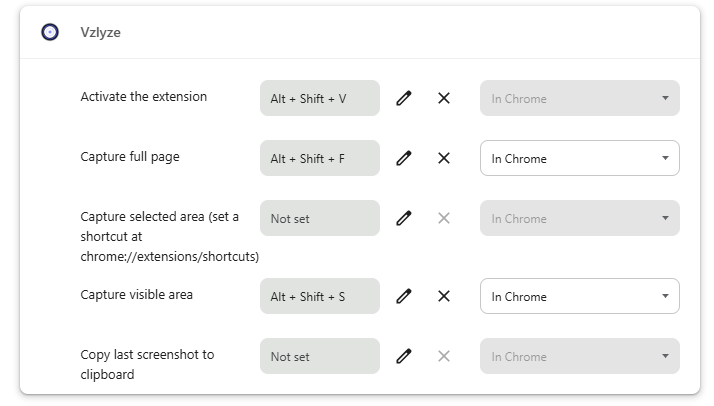
From that page you can:
- Change any default to a combination that fits your hands better.
- Set a key for Capture selected area, which ships unbound.
- Decide whether a shortcut works globally (anywhere on your machine) or only inside Chrome.
Global shortcuts are tempting for capture work, since you can fire them from any app. The catch is that a global binding wins over the same combo in any other app. Leave shortcuts set to "In Chrome" unless you have a specific reason to go global.
Disabling shortcuts you keep hitting by accident
Sometimes a shortcut conflicts with how you already type. If you keep triggering one of them by accident, Vzlyze has a per-command disable toggle in the Account view. Each shortcut shows up with a checkbox. Uncheck it and that command stops responding to its key, even though the key is still reserved by the extension.
This is also the right place to look if you share a machine with someone whose habits clash with yours, or if you only want one or two of the shortcuts active.
Where it falls short
A few honest caveats worth knowing about.
Chrome only lets an extension ship four suggested shortcuts. That's why Capture selected area starts unbound. There isn't a fifth slot for us to pre-fill. You can wire it up in about ten seconds at chrome://extensions/shortcuts, but it's a one-time manual step.
Chrome also doesn't always honor every suggested key on install or update. If you look at the shortcuts page and see one of the defaults sitting at "Not set," that's Chrome being cautious about overwriting a binding you might already use. Click the pencil icon next to the row, press the combo you want, and you're done.
Some default combos can collide with other software. On Windows, Alt+Shift+S overlaps with certain input-method editors and a couple of screen-capture utilities. If a shortcut feels like it's not firing, the most likely cause is another app intercepting the key combo. Rebind it to something free and the shortcut comes back to life.
Extension shortcuts don't work on browser-internal pages: chrome:// URLs, the Web Store, the new-tab page on some setups. Chrome blocks all extension activity on those pages for security reasons. Navigate to a regular site and the shortcuts work again.
The combo that adds up
The sequence that saves the most time, in our use:
- Alt+Shift+S to capture the visible area.
- Alt+Shift+C to copy the result to your clipboard.
- Ctrl+V (or Cmd+V on Mac) to paste wherever it needs to go.
Three keys, no popup, no menu. The whole thing is faster than reaching for the toolbar icon once.
Try the shortcuts on a real page
Install Vzlyze, hit Alt+Shift+S, and see how much faster screenshot work gets.
Get VZLyze for Chrome