You captured a screenshot of an invoice to ask a coworker about a line item. The line item is harmless. The customer address, the phone number, and the account ID printed across the top are not. Now you have a choice: send the image as-is and hope nobody forwards it, or stop and redact the parts that shouldn't leave your laptop.
Vzlyze gives you three ways to do that. They sit at different points on a control-versus-effort curve, and the right one depends on how much you trust the image, how many regions you need to cover, and whether you want a human or a model deciding what counts as sensitive.
Path one: manual blur in the annotation editor
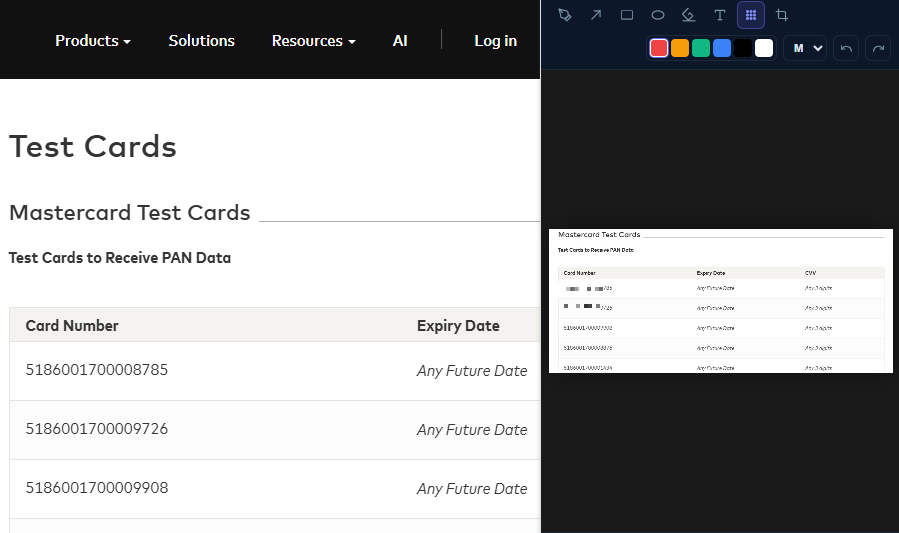
The most predictable option is the blur tool inside the in-popup annotation editor. You capture, click Annotate / Edit, pick the blur tool, drag a rectangle over each sensitive region, and Save. The selected area is replaced with real pixelation, not a soft Gaussian smear that can be undone in Photoshop. Once you save, the original pixels inside the box are gone from the working copy.
Use this when you know exactly what's sensitive and want to be the one deciding. It's instant, runs on your machine, and uses no AI. The cost is your attention: you have to spot every box yourself, including the small ones at the edges of the frame.
Path two: the Auto-Anonymize PII button
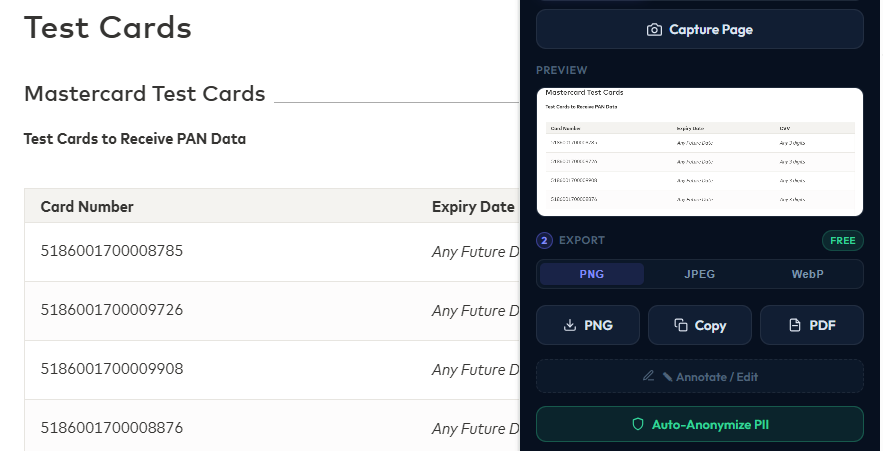
After you capture a screenshot, the Auto-Anonymize PII button sits in the Export section of the popup, right under the format pickers. One click runs a hybrid pipeline: local OCR reads every word and its bounding box, a regex pass picks up structured patterns like emails, phone numbers, SSN, and card numbers, and a backend call asks a fast model to identify address-shaped and account-shaped spans that don't match any clean pattern. Every match is converted to a blur rectangle and burned into the image. No analysis run is required first; the button operates on whatever screenshot is loaded in the popup.
Use this when there are too many things to box manually, when the layout is dense, or when you want a second pair of eyes catching what you'd miss. It costs one credit per run — Quick on Free/Starter, Deep on Pro/Business.
Path three: the PDF download modal
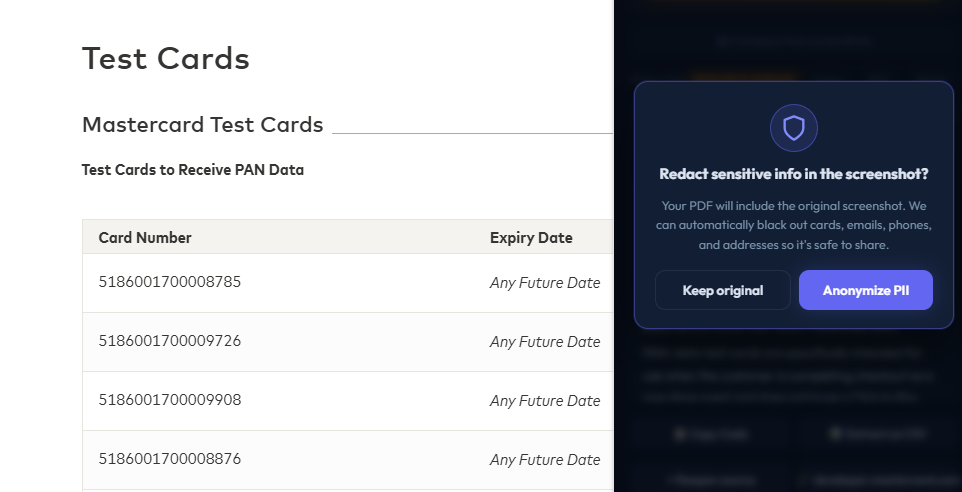
The third path is the newest and the one most people miss. Every time you export a screenshot or analysis as a PDF, Vzlyze pops a small modal asking whether to keep the embedded image untouched or run a PII scrub over it first. Choosing Anonymize PII applies the same local OCR plus regex pipeline used by the manual flow, but skips the AI call entirely. It catches emails, phone numbers, addresses, SSN, IBAN, and card numbers. It runs in a few seconds, costs nothing, and leaves your underlying screenshot in the popup unchanged.
Use this when the screenshot is fine inside Vzlyze but the PDF is leaving your machine: a report you're emailing to a client, a deck attachment, anything that gets forwarded. The modal is a per-download decision, so you can keep the original PDF for your records and anonymize the copy you send out.
What gets redacted, and what doesn't
The Anonymize feature is deliberately scoped to data PII and not identity. Addresses, phone numbers, emails, account numbers, card numbers, SSNs, and similar structured-sensitive fields are covered. Names of people, company names, and product names are intentionally left visible.
That choice surprises some users, so it's worth explaining. The most common reason to share a screenshot is to talk about a thing or a person: a Twitter post by a specific account, a public figure's blog, a colleague's slide. If the name gets blurred along with the address, the recipient loses the context that made the screenshot worth sending. Vzlyze's rule of thumb is to redact the data and keep the context.
If you do want a name blurred in a specific image, the manual blur tool is the right place to do it. One drag, done.
Where it falls short
Auto-detection isn't perfect. The hybrid pipeline catches the patterns it knows about, but a hand-written-style address in an unusual format, a partial card number split across two lines, or text printed at a tiny font size that the OCR mis-reads can all slip through. After running Anonymize, always glance at the result before sharing, and if anything looks missed, follow up with the manual blur tool.
The PDF download modal redacts the embedded screenshot image, not any text Vzlyze wrote around it in the report body. The AI summary itself has separate safeguards: a system-prompt rule and a regex backstop strip card numbers and structured PII out of the model's response text before it ever reaches you. But if you've pasted sensitive text into a custom prompt, that's not covered by either pass.
And the obvious one: nothing replaces a careful pre-share look. The fastest workflow is to anonymize first and then scan the image once before hitting send. Two seconds of human review catches what automation misses.
Try the anonymize tools
Install the Vzlyze extension, capture any page that has sensitive data, and pick the path that fits the situation.
Get VZLyze for Chrome